
There’s nothing more frustrating than settling in for your favorite show, only to have the screen freeze, spin, and buffer endlessly. If your IPTV keeps buffering on Firestick, you’re not alone. This is one of the most common streaming issues users experience — but the good news is that it’s almost always fixable.
Buffering happens when your device can’t download video data fast enough to keep playback smooth. On a Firestick, several factors can cause this — from internet speed and Wi-Fi interference to device limitations and server performance.
In this guide, we’ll break down the real reasons behind IPTV buffering on Firestick and provide clear, practical solutions to help you enjoy uninterrupted streaming with reliable services like StarPrimeMedia, Hulu, and IboPlayerMedia.
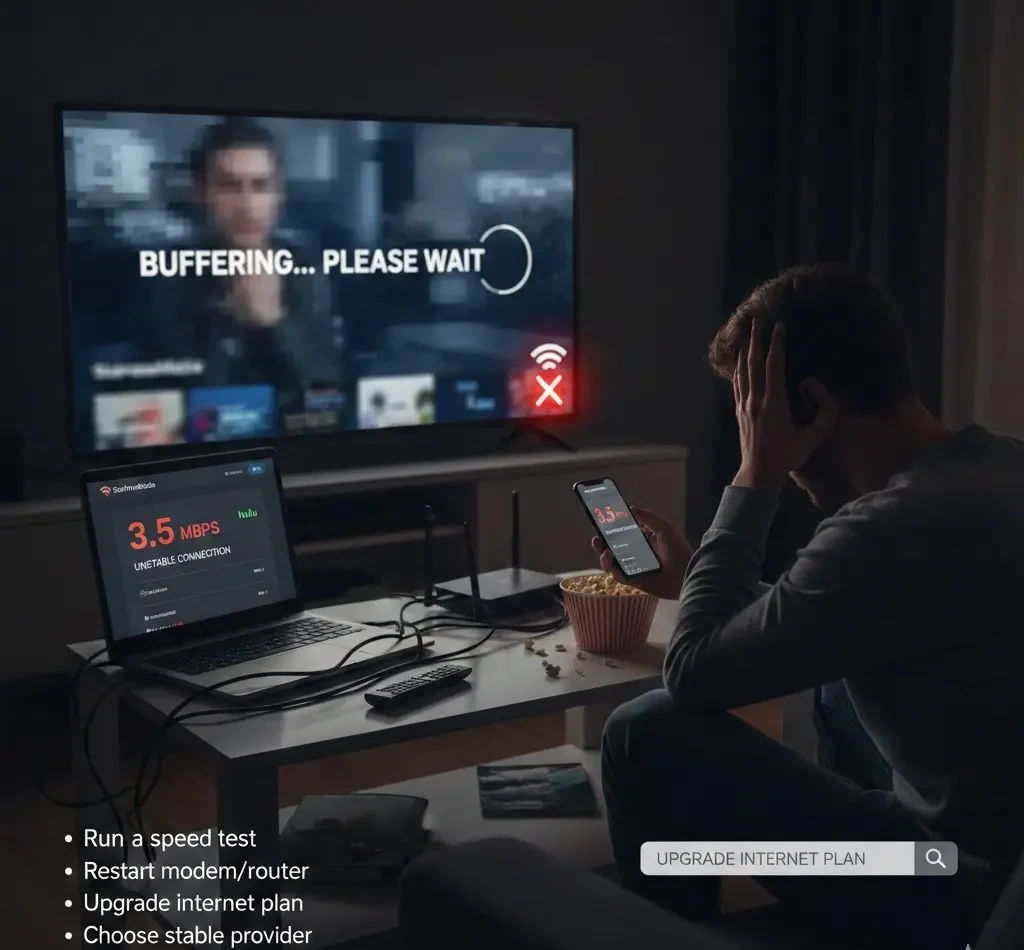
1. Slow or Unstable Internet Connection
The number one cause of buffering is insufficient bandwidth.
For smooth streaming, your connection should meet these minimums:
-
SD streaming: 5 Mbps
-
HD streaming: 10–15 Mbps
-
4K streaming: 25–50 Mbps
If your internet speed drops below the required level — even temporarily — buffering will occur.
What to Do:
-
Run a speed test during peak evening hours.
-
Restart your modem and router.
-
Upgrade your internet plan if speeds are consistently low.
-
Choose a stable broadband provider.
For high-definition content on StarPrimeMedia or Hulu, maintaining consistent speeds above 25 Mbps is ideal.
2. Weak Wi-Fi Signal to Your Firestick
The Firestick relies heavily on Wi-Fi. If your router is far away or blocked by walls, signal strength weakens — causing buffering even if your internet plan is fast.
Signs of Wi-Fi Issues:
-
Buffering happens randomly.
-
Speed tests near the router show faster results.
-
Other devices work fine closer to the router.
Solutions:
-
Move your router closer to the TV.
-
Use a Wi-Fi extender.
-
Switch to a 5GHz network if available.
-
Use an Ethernet adapter for a wired connection (highly recommended for 4K streaming).
A stable wired setup dramatically improves performance for platforms like StarPrimeMedia and IboPlayerMedia.
3. Firestick Storage Is Full
Firestick devices have limited internal storage. When storage gets nearly full, performance slows down — which can cause streaming apps to lag or buffer.
How to Fix:
-
Navigate to Settings, select Applications, then open Manage Installed Applications.
-
Clear cache from streaming apps.
-
Uninstall unused apps.
-
Restart your Firestick after cleanup.
Regular maintenance helps keep your device responsive and smooth.
4. Background Apps Consuming Resources
Many users don’t realize Firestick apps continue running in the background. These apps consume RAM and processing power, reducing streaming performance.
Solution:
-
Force stop unused apps in settings.
-
Restart your Firestick at least once a week.
-
Avoid installing unnecessary third-party applications.
Optimizing device performance ensures better playback quality when using trusted services like Hulu or StarPrimeMedia.
5. Server-Side Congestion
Not all buffering is your fault. Sometimes, streaming servers become overloaded — especially during live sports or popular events.
Reliable providers invest in strong server infrastructure to reduce congestion. Choosing reputable services like StarPrimeMedia, Hulu, and IboPlayerMedia ensures better stability and reduced downtime.
If buffering only happens on one service but others stream smoothly, the issue may be provider-related.
6. Overloaded Home Network
If multiple people in your home are:
-
Streaming simultaneously
-
Gaming online
-
Downloading large files
-
Attending video calls
Your bandwidth is being shared.
Even a 100 Mbps connection can struggle under heavy usage.
Fix:
-
Upgrade to 200 Mbps or higher for busy households.
-
Limit simultaneous 4K streams.
-
Enable Quality of Service (QoS) settings on your router to prioritize streaming devices.
7. Outdated Firestick Software
Running outdated firmware can create compatibility issues and slow performance.
Update Your Device:
-
Open Settings, choose My Fire TV, select About, then click on Check for Updates.
-
Install any available updates.
-
Restart the device after updating.
Updated systems run streaming apps more efficiently.
8. Overheating Issues
Firestick devices can overheat, especially if plugged directly behind a TV without airflow.
Overheating can cause:
-
Random buffering
-
App crashes
-
Sluggish performance
Prevention:
-
Use the HDMI extender included with your Firestick.
-
Ensure proper ventilation.
-
Avoid stacking electronics tightly together.
Keeping your device cool helps maintain consistent streaming performance.
9. VPN-Related Slowdowns (If Applicable)
If you’re using a VPN, it can reduce internet speed due to encryption overhead.
Troubleshooting:
-
Temporarily disable the VPN to test performance.
-
Switch to a faster server location.
-
Choose a high-speed VPN provider.
While VPNs enhance privacy, they may impact streaming speed if not optimized.
10. Router Hardware Limitations
Older routers may struggle with high-bandwidth streaming, especially 4K content.
Consider upgrading to:
-
Dual-band router
-
Wi-Fi 6 router
-
Mesh Wi-Fi system for larger homes
Modern routers provide stronger, more consistent connections — critical for buffer-free IPTV streaming.
Best Setup for Buffer-Free IPTV on Firestick
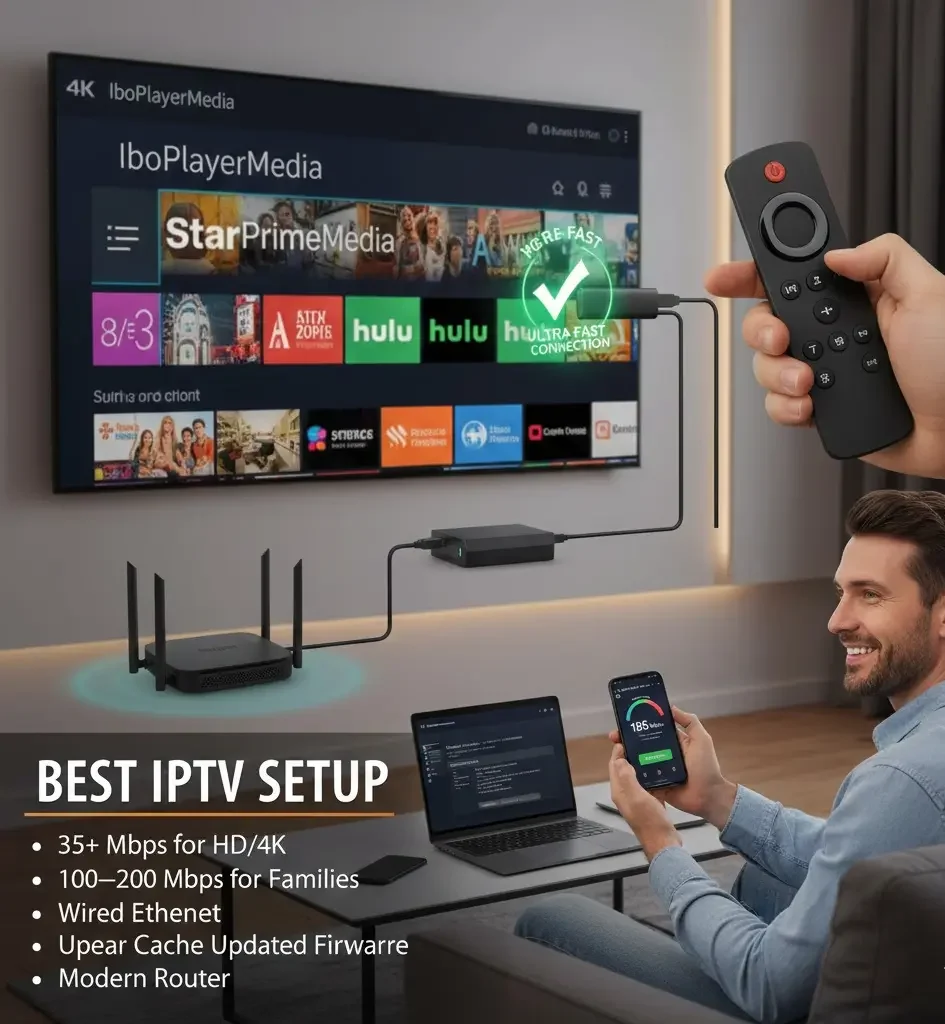
For the best experience with StarPrimeMedia, Hulu, and IboPlayerMedia, aim for:
-
Minimum 35 Mbps for HD/4K
-
100–200 Mbps for families
-
Wired Ethernet connection
-
Regular cache clearing
-
Updated Firestick firmware
-
Modern router hardware
This setup significantly reduces interruptions and maximizes picture quality.
When to Contact Your Service Provider
If you’ve:
-
Tested your internet speed
-
Cleared cache and storage
-
Improved Wi-Fi strength
-
Updated your device
…and buffering still continues, it may be time to contact your streaming provider or ISP.
Reliable services like StarPrimeMedia, Hulu, and IboPlayerMedia typically offer customer support to troubleshoot performance concerns.
Final Thoughts
Buffering on Firestick can feel overwhelming, but most issues are simple to diagnose and fix. In many cases, it comes down to internet stability, device optimization, or network congestion.
By upgrading your setup and choosing reputable streaming services like StarPrimeMedia, Hulu, and IboPlayerMedia, you dramatically improve your viewing experience.
Streaming should be smooth, immersive, and stress-free. With the right connection, optimized Firestick settings, and reliable platforms, you can eliminate buffering and enjoy uninterrupted entertainment every time you press play.
Take control of your setup — and turn buffering into a thing of the past.