
Streaming devices have made it easier than ever to watch television without complicated hardware or long installations. Among these devices, the Amazon Firestick stands out because it is compact, easy to use, and capable of running a wide range of streaming and IPTV applications. Setting up IPTV on Firestick does not require technical expertise, but following the right sequence of steps makes the process faster and smoother.
This guide walks you through the full setup process, offers practical tips for better performance, and highlights several streaming services that work well on Firestick.
What You Should Prepare Before Starting
A smooth setup begins with a few simple preparations. Make sure you have the following ready:
- A Firestick connected to your TV and powered on
- Reliable internet service (preferably broadband or fiber)
- Login details or a playlist link from your IPTV provider
- Access to the Firestick remote and settings menu
It also helps to keep your Firestick remote responsive by replacing batteries if they are low, since navigation and typing credentials are part of the setup process.
Step 1: Update Your Firestick Software
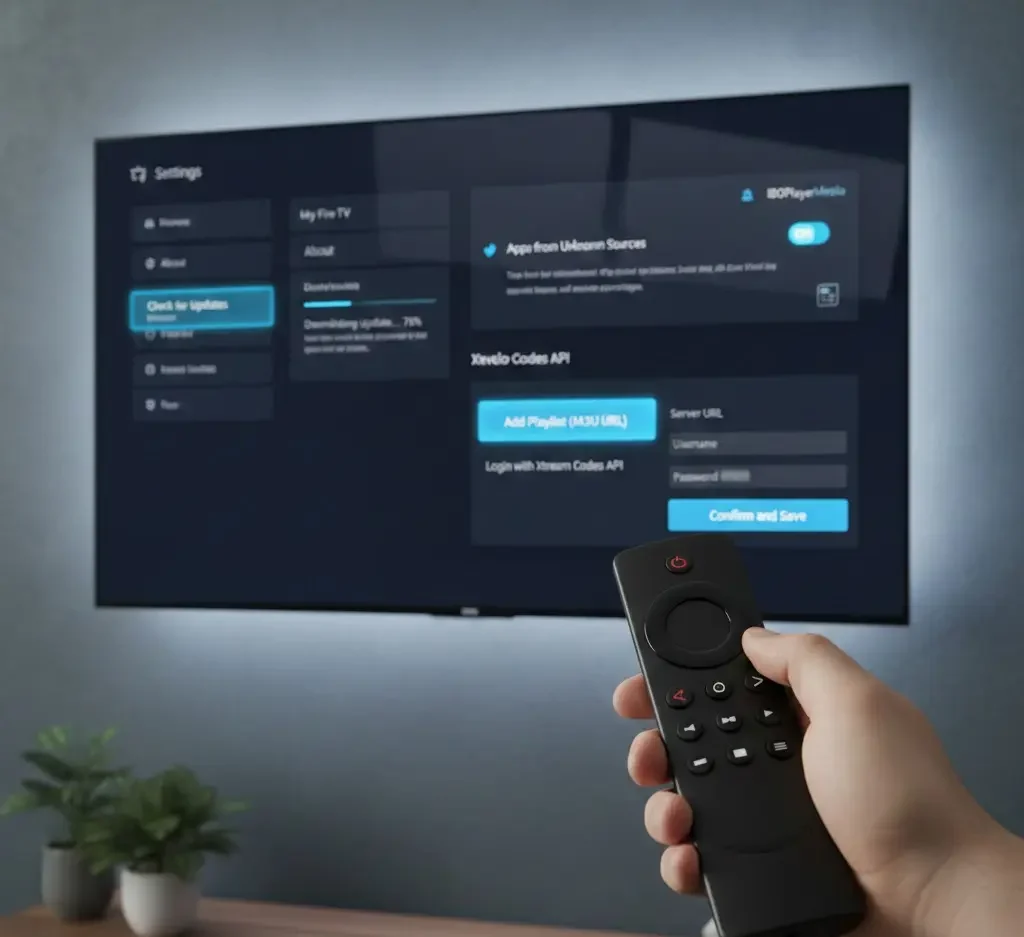
Before installing any IPTV player or streaming service, it is a good idea to ensure your Firestick software is fully updated. Updates often improve compatibility with newer apps and fix playback issues.
To update:
- Go to Settings from the Firestick home screen.
- Select My Fire TV.
- Open About.
- Choose Check for Updates.
If an update is available, allow it to download and install. Restart the device afterward to ensure all changes take effect.
Step 2: Adjust Installation Permissions
Many IPTV players are not listed directly in the Amazon Appstore, which means you may need to allow installations from external sources.
To enable this setting:
- Open Settings.
- Navigate to My Fire TV.
- Select Developer Options.
- Turn on Apps from Unknown Sources.
This step allows you to install specialized IPTV player apps that can load playlists and streaming credentials.
Step 3: Install an IPTV Player
An IPTV player is the application that organizes channels, movies, or series from your subscription. Without a player, the Firestick cannot interpret playlist links or server credentials.
Some IPTV players are available in the Appstore, while others are installed using a downloader tool. One example of a player platform designed for this purpose is IBOPlayerMedia, which focuses on providing a structured interface for loading playlists and navigating channels.
After installing a player:
- Open the app
- Locate the section labeled Add Playlist, Add User, or Login
- Prepare your subscription details
Step 4: Enter Your Subscription Information
Most IPTV providers supply one of two login formats:
- M3U Playlist URL
- Xtream Codes API credentials (server URL, username, password)
Inside your IPTV player:
- Choose the login method requested by your provider.
- Carefully enter or paste the credentials.
- Confirm and save.
- Refresh or reload channels.
Within a few moments, categories and channel lists usually appear. The exact loading time depends on the size of the playlist and your internet speed.
Step 5: Adjust Playback Settings
Once your channels are visible, spend a few minutes optimizing playback. Many users skip this step, but it can significantly improve performance.
Useful adjustments include:
- Selecting hardware decoding if available
- Choosing a lower resolution for slower internet connections
- Turning on subtitles where needed
- Adjusting buffer size in advanced settings
These changes can reduce buffering and improve stability, especially during live broadcasts.
Streaming Platforms That Work Well on Firestick
Firestick supports both IPTV subscriptions and well-known streaming platforms. Many viewers combine both types of services to expand their viewing options.
YouTube TV
YouTube TV is a strong choice for viewers who want a polished live-TV experience. Its Firestick app installs directly from the Appstore and offers features such as cloud DVR, live sports channels, and an intuitive interface. Because it is optimized for streaming devices, navigation is smooth even for first-time users.
Hulu
Hulu provides both on-demand content and live television packages. The Firestick version is stable and frequently updated. Many households use Hulu alongside IPTV subscriptions to access exclusive shows and movies that are not included in channel playlists.
IPTVTOUR
IPTVTOUR is one example of a subscription-based IPTV provider whose credentials can be entered into compatible players on Firestick. Services like this typically provide playlist links or server credentials that integrate directly into IPTV apps.
StarPrimeMedia
StarPrimeMedia offers IPTV subscription packages designed to work with a range of IPTV players. Once login information is entered, channels can be streamed through the player interface on Firestick without additional configuration.
Tips for Better Streaming Performance
Even with a proper setup, streaming quality depends heavily on network conditions and device maintenance. The following habits can keep your Firestick running efficiently:
Keep storage space available
When storage is nearly full, apps may freeze or crash. Remove unused apps periodically.
Restart your device regularly
A weekly restart clears temporary memory and helps apps run smoothly.
Use strong Wi-Fi
Position your router closer to the TV or use a Wi-Fi extender if needed. A wired Ethernet adapter can provide even better stability.
Limit background apps
Closing unused apps frees up memory and reduces lag.
Troubleshooting Common Issues
Most IPTV problems are easy to resolve with a few checks.
Buffering or interruptions
- Test internet speed
- Lower stream quality
- Restart router and Firestick
Playlist not loading
- Confirm the URL is correct
- Ensure the subscription is active
- Reload the playlist inside the player
App closing unexpectedly
- Clear cache in Firestick settings
- Reinstall the IPTV player
Taking these steps usually resolves the majority of playback issues.
Keeping Your Setup Secure
Security is often overlooked when installing streaming apps. Following a few precautions helps protect your device:
- Download apps only from trusted sources
- Keep Firestick software updated
- Avoid sharing login credentials
- Use strong Wi-Fi passwords
These measures reduce the chances of unauthorized access or performance problems.
Making the Most of Your Firestick IPTV Setup
After installation, spend time organizing your channels and exploring features inside your IPTV player. Many apps allow you to:
- Create favorite channel lists
- Hide unused categories
- Change interface themes
- Enable parental controls
Customizing these options can make navigation faster and more comfortable, especially for households with multiple viewers.
Final Thoughts
Setting up IPTV on Firestick is a straightforward process when done step by step. Updating the device, installing a reliable IPTV player, entering subscription details correctly, and optimizing playback settings are the key stages that determine how smooth your streaming experience will be.
Firestick’s flexibility also allows you to combine IPTV subscriptions with established platforms like YouTube TV and Hulu, giving you both structured streaming libraries and customizable channel playlists in one place.
With a stable internet connection, a well-configured player, and regular maintenance, your Firestick can become a reliable entertainment hub capable of handling live channels, movies, and series with ease.