
Watching your favorite shows, sports, or movies through IPTV on your Samsung Smart TV should be a seamless experience. Unfortunately, buffering can disrupt streaming, leaving fans frustrated and ruining the viewing experience. Buffering occurs when your device cannot download video data fast enough to play it smoothly. Fortunately, most buffering issues are fixable with practical steps.
This guide will help you eliminate buffering on Samsung Smart TVs without using a VPN, ensuring smooth, uninterrupted streaming.
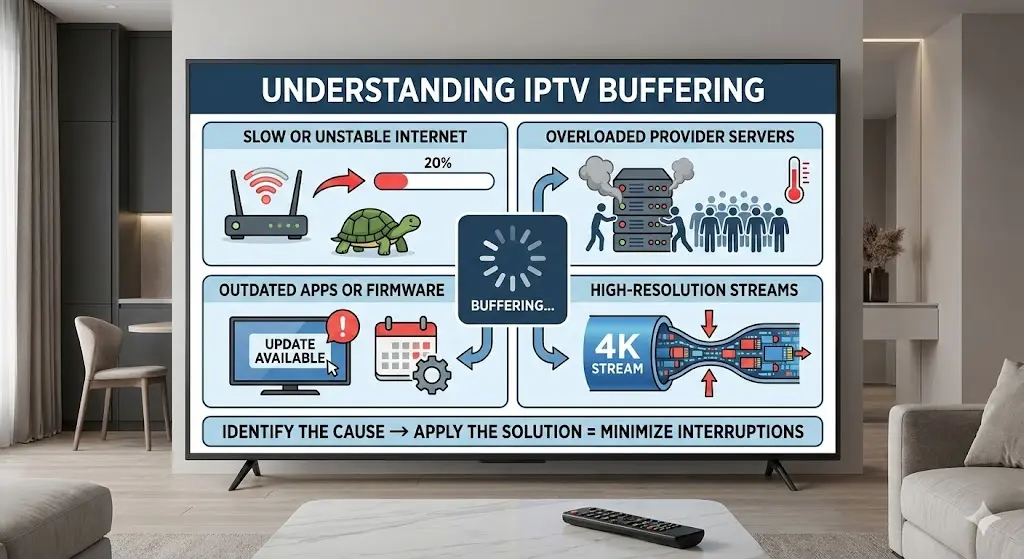
Understanding IPTV Buffering
Buffering occurs when your TV cannot process the video stream in real time. Common reasons include:
- Slow or unstable internet connection
- Overloaded servers from your IPTV provider
- Outdated apps or Samsung Smart TV firmware
- High-resolution streams exceeding network or device capabilities
By identifying the cause, you can apply the right solution to minimize interruptions.
Step 1: Check Your Internet Connection
Your internet connection is the most crucial factor in preventing buffering. Samsung Smart TVs connect via Wi-Fi or Ethernet, and poor connectivity can lead to frequent interruptions.
Tips to improve your connection:
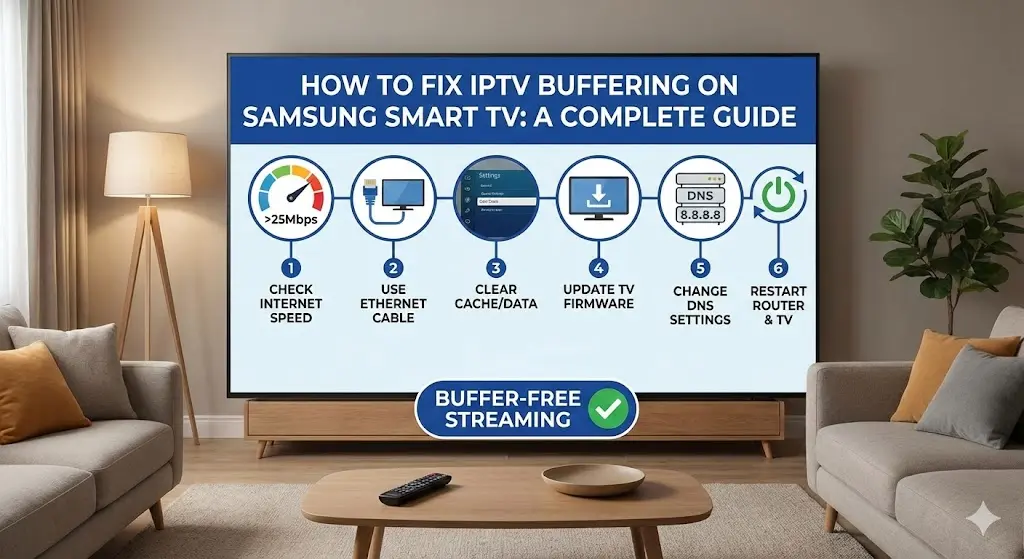
- Test your speed:IPTV usually requires 10–15 Mbps for HD streams and 25 Mbps or more for 4K content.
- Use Ethernet if possible:Wired connections are more stable and less prone to interference.
- Optimize Wi-Fi:Place your TV closer to the router, avoid thick walls, and reduce interference from other electronics.
- Limit other devices:Heavy internet use on other devices can consume bandwidth and cause buffering.
Step 2: Restart Your Network and TV
Temporary glitches can often cause buffering. Restarting your devices can fix these issues quickly.
How to do it:
- Power down your Samsung Smart TV and disconnect it from the power source..
- Power off your modem and router for 30 seconds.
- Turn the router back on and wait for a stable connection.
- Plug in your TV and turn it on.
A fresh connection can resolve many buffering problems.
Step 3: Update IPTV App and Samsung Firmware
Outdated apps or firmware may lead to buffering due to incompatibility or bugs. Keeping software updated ensures smooth streaming.
Updating the IPTV app:
- Go to Apps > My Appson your Samsung Smart TV.
- Select your IPTV app and check for updates.
- Install updates and restart the app.
Updating Samsung Smart TV firmware:
- Go to Settings > Support > Software Update, then select Update Now.
- Follow instructions to install the latest version.
- Restart the TV after updating.
Regular updates help prevent performance issues and improve compatibility with IPTV streams.
Step 4: Adjust Streaming Quality
High-quality streams can overwhelm your network, causing buffering. Reducing the stream resolution can improve playback stability.
How to adjust quality:
- Open your IPTV app settings.
- Look for options such as Stream Quality, Resolution, or Video Bitrate.
- Lower the resolution from 4K to HD or HD to SD if necessary.
Many IPTV apps offer adaptive streaming, which automatically adjusts quality based on network conditions.
Step 5: Clear Cache on the IPTV App
Over time, apps store temporary data that can slow down performance. Clearing the cache can refresh your app and reduce buffering.
Steps to clear cache:
- Go to Settings > Appson your Samsung Smart TV.
- Select your IPTV app.
- Choose Clear Cache(or Clear Data if necessary).
- Restart the app.
This removes old data that may cause lag or interruptions.
Step 6: Check IPTV Provider Servers
Sometimes buffering is caused by the IPTV provider’s servers being overloaded. You can check and resolve this by:
- Switch to an alternative server if your IPTV provider provides multiple choices..
- Avoiding peak hours when servers are most congested.
- Contacting the provider for troubleshooting assistance or server recommendations.
Reliable providers usually have backup servers to reduce buffering issues.
Step 7: Optimize Your Samsung Smart TV Settings
Certain TV settings can impact streaming performance. Adjusting them can help reduce buffering:
- Turn off background apps:Close other apps running in the background to free up resources.
- Lower video enhancements:Features like motion smoothing or HDR can occasionally strain processing power.
- Enable network optimization:Some Samsung Smart TVs have network performance or streaming optimization options in settings.
Step 8: Organize Your Network Environment
Sometimes, buffering occurs due to environmental factors affecting Wi-Fi performance.
- Avoid placing the router near devices that emit interference, such as microwaves or cordless phones.
- Use a dual-band router and connect your Smart TV to the 5GHz band for better speed and stability.
- Ensure minimal physical barriers between your router and TV.
Conclusion
IPTV buffering on Samsung Smart TVs can be frustrating, but most problems are easily solved without extra tools like VPNs. By ensuring a stable internet connection, updating apps and firmware, adjusting stream quality, clearing cache, and checking server status, you can enjoy smooth and uninterrupted streaming.
Optimizing your TV settings and network environment further enhances performance, allowing you to watch movies, live sports, and shows without interruptions. Following these steps ensures your IPTV experience on a Samsung Smart TV is reliable, high-quality, and buffer-free—so you can relax and enjoy your favorite content hassle-free.