
In the era of IPTV, MAG devices have become a popular choice for streaming live TV, movies, and sports directly to your television. These devices are small set-top boxes that deliver high-quality digital content from IPTV providers without relying on traditional cable or satellite services. Whether you’re a first-time user or setting up a new MAG device, this step-by-step guide will help you connect your MAG device to your TV and internet for a seamless viewing experience.
What is a MAG Device?
A MAG device is an IPTV set-top box produced by Infomir that allows you to stream digital television and on-demand content over the internet. MAG devices are compatible with a wide variety of IPTV services, support high-definition and 4K content, and offer features like an electronic program guide (EPG), parental controls, and multiple audio/subtitle options.
Some popular MAG models include:
- MAG 322/324 – Entry-level IPTV streaming devices
- MAG 424/425 – 4K Ultra HD support with advanced features
- MAG 520/521 – High-performance devices for heavy IPTV users
MAG devices are ideal for anyone looking to replace traditional cable services or access multiple channels from global IPTV providers.
What You Need Before Setup
Before you start connecting your MAG device, make sure you have:
- MAG device – Ensure it’s compatible with your IPTV subscription
- Internet connection – Wired (Ethernet) or Wi-Fi, preferably with 10 Mbps or higher for HD streaming
- Power adapter – Usually included with the MAG device
- IPTV subscription details – Portal URL, username, and password (provided by your IPTV provider)
Tip: Wired Ethernet connections are recommended for smoother playback, especially for HD and 4K content.
Step 1: Connect Your MAG Device to the TV
- Locate the HDMI port on your TV: Modern TVs usually have multiple HDMI inputs on the back or side panel.
- Plug the HDMI cable into the MAG device: Connect one end to the HDMI output port of your MAG device.
- Connect the other end to the TV: Insert it into an available HDMI input.
- Power on the TV and MAG device: Use your TV remote to switch to the corresponding HDMI input channel.
Once connected, your TV should display the MAG device startup screen.
Step 2: Connect MAG Device to the Internet
MAG devices support wired Ethernet and Wi-Fi connections. Here’s how to set up both:
Option 1: Wired Ethernet Connection
- Plug one end of an Ethernet cable into the LAN port on the MAG device.
- Connect the other end to your router or modem.
- Turn on the MAG device and navigate to Settings → System Settings → Network → Wired Network → DHCP/Automatic.
- The MAG device will automatically obtain an IP address and connect to the internet.
Option 2: Wireless Wi-Fi Connection
- Navigate to Settings → System Settings → Network → Wi-Fi Network on the MAG interface.
- Select your Wi-Fi network from the list of available networks.
- Enter your Wi-Fi password and confirm.
- The device will connect and obtain an IP address automatically.
Tip: Wired connections are more reliable for HD or 4K streaming as Wi-Fi can occasionally drop signals or buffer during high-traffic periods.
Step 3: Enter IPTV Subscription Details
After connecting to the internet, the MAG device must be configured with your IPTV provider’s portal.
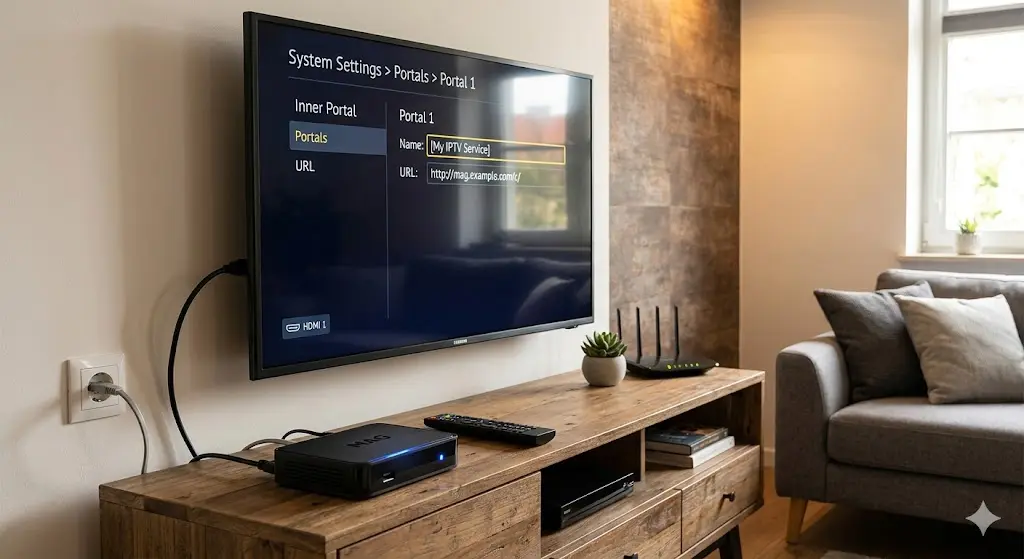
- Go to Settings → System Settings → Servers → Portals.
- Under Portal 1 Name, enter a descriptive name (e.g., “My IPTV”).
- Under Portal 1 URL, enter the portal URL provided by your IPTV provider.
- Save the settings and restart the MAG device.
The MAG device will now connect to your IPTV provider and download your channels, VOD content, and EPG.
Step 4: Navigating the MAG Interface
Once connected, your MAG device will display a set-top box-style interface. Here’s what you can expect:
- Live TV: Browse through your IPTV channels using the channel list
- VOD (Video on Demand): Watch movies, series, and shows anytime
- EPG (Electronic Program Guide): Check schedules and upcoming shows
- Favorites: Mark channels you watch most frequently for quick access
- Settings: Adjust display, audio, subtitles, and network options
Pro Tip: Use the EPG refresh option regularly to ensure you have updated program schedules.
Step 5: Optimize Your MAG Device for Best Performance
- Enable 4K/HD resolution: Navigate to Settings → Video Output → Resolution and select the highest supported resolution for your TV.
- Check audio settings: Select the correct audio output (PCM, Dolby Digital, or Auto) for your sound system.
- Use wired connection if possible: Reduces buffering during peak internet usage.
- Update firmware regularly: Go to Settings → System Settings → Information → Firmware Update to check for updates.
Proper optimization ensures smooth streaming and a better viewing experience.
Troubleshooting Common MAG Device Issues
Even with a proper setup, you may encounter minor issues. Here’s how to fix them:
| Issue | Solution |
|---|---|
| No picture on TV | Check HDMI connection and ensure the TV is set to the correct HDMI input |
| MAG device not connecting to internet | Verify Ethernet cable or Wi-Fi password; restart device and router |
| Channels not loading | Confirm portal URL and subscription validity; restart device |
| Buffering or lag | Use wired connection; lower video resolution; check internet speed |
| Remote not responding | Replace batteries or try universal remote setup |
Advantages of Using a MAG Device
- High-quality streaming: Supports HD and 4K content
- Set-top box interface: Familiar and easy to navigate
- Multi-platform IPTV support: Works with most legal IPTV providers
- EPG and VOD support: Access live TV, movies, and catch-up content in one place
- Affordable and compact: Small footprint with cost-effective IPTV access
Final Thoughts
Connecting a MAG device to your TV and internet is straightforward once you know the steps. By following this guide, you can enjoy seamless IPTV streaming, access live TV, catch-up shows, and on-demand movies with a set-top box interface directly on your Android or Smart TV.
Whether you’re a casual viewer or a hardcore sports fan, a MAG device offers flexibility, high-quality streaming, and the convenience of a modern IPTV experience. With proper setup and optimization, your MAG device can become the centerpiece of your home entertainment system in 2026.