
Getting started with a MAG box is much easier than most people think. Whether you’re new to IPTV or switching from traditional TV services, a MAG device can have you watching live channels, movies, and on-demand content in just a few minutes.
This guide explains the entire setup process, from connecting the device to entering your IPTV portal details and troubleshooting common issues.
Why Choose a MAG Box?
MAG boxes are purpose-built IPTV streaming devices developed by Infomir. Unlike many Android TV boxes that come loaded with apps and extra features, MAG devices focus on one job: delivering IPTV streams quickly and reliably.
Because the software is lightweight and optimized for IPTV services, users often enjoy:
- Faster channel loading times
- Stable streaming performance
- Simple and easy-to-use menus
- Reliable electronic program guides (EPG)
- Support for HD and 4K content on newer models
For many UK households, a MAG box provides a straightforward alternative to more complicated streaming setups.
What You’ll Need
Before beginning the setup process, make sure you have:
Equipment
- MAG box
- Remote control
- HDMI cable
- Power adapter
- Television with an HDMI input
- Internet connection (Ethernet recommended)
IPTV Subscription Details
Your IPTV provider will typically supply:
- Portal URL
- Subscription activation details
- MAC address registration
The MAC address is unique to your MAG box and is required for activation.
Connecting the Device
Start by connecting the MAG box to your television using the HDMI cable.
Next:
- Connect the power adapter.
- Connect an Ethernet cable from your router to the MAG box.
- Turn on the television.
- Select the correct HDMI source.
Although some MAG models support Wi-Fi, a wired connection generally provides the best streaming experience and reduces the chances of buffering.
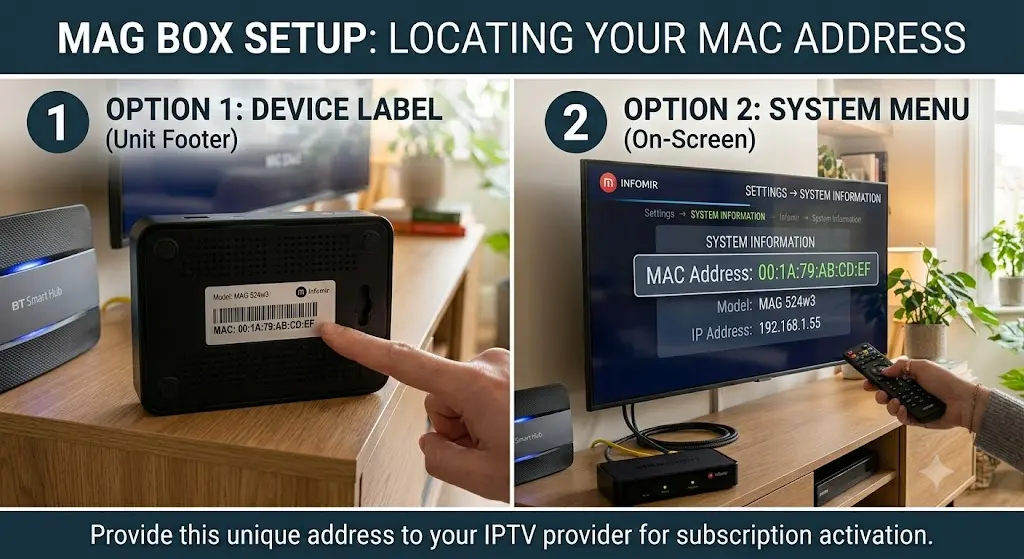
Finding Your MAC Address
Every MAG box has a unique MAC address used by IPTV providers to authorize access.
You can locate it in two ways:
Option 1: Device Label
Check the sticker on theFooterof the unit.
Option 2: System Menu
Navigate to:
Settings → System Information
The MAC address will appear on screen.
Provide this information to your IPTV provider so they can activate your subscription.
Adding Your IPTV Portal
Once your account has been activated, you’ll need to enter the portal address supplied by your provider.
Follow these steps:
- Open the MAG box settings menu.
- Select System Settings.
- Choose Servers.
- Open Portals.
- Enter your portal URL in the Portal 1 URL field.
- Enter a portal name in Portal 1 Name.
- Save the settings.
- Restart the device.
After rebooting, the box will attempt to connect to the IPTV server automatically.
If everything has been configured correctly, your channel list should appear within moments.
Understanding the Main Menu
Most IPTV portals include several key sections:
Live TV
Browse channels by category, such as:
- Sports
- Entertainment
- News
- Movies
- Kids
- International
Video On Demand
Access movies and TV series whenever you want.
Catch-Up TV
Some providers offer replay functionality, allowing you to watch previously aired programs.
TV Guide
The electronic program guide displays current and upcoming broadcasts.
You can usually access it using the EPG or Info button on the remote.
Improving Streaming Performance
A few simple adjustments can improve overall performance.
Use Ethernet Whenever Possible
A direct cable connection provides greater stability than Wi-Fi.
Set the Correct Time Zone
Navigate to:
Settings → System Settings → Time Zone
Select the UK time zone to ensure guide information displays correctly.
Keep Software Updated
Check periodically for firmware updates, which can improve performance and compatibility.
Enable Parental Controls
Most IPTV portals include options for restricting access to specific content categories.
Common Problems and Solutions
Portal Won’t Connect
Possible causes include:
- Incorrect portal URL
- Internet connection issues
- Subscription not activated
- MAC address not registered
Double-check all details with your provider.
Buffering During Playback
Try the following:
- Use a wired connection
- Restart your router
- Reduce network congestion
- Verify your internet speed
For HD streaming, a stable broadband connection is recommended.
Missing TV Guide Information
EPG data can take some time to populate after activation.
If guide information remains unavailable after several hours, contact your provider for assistance.
Remote Control Issues
If the remote becomes unresponsive:
- Replace the batteries
- Restart the MAG box
- Re-pair the remote if supported by your model
Recommended MAG Models for 2026
MAG 322 / 323
A dependable choice for standard HD streaming.
MAG 324
Offers improved performance and optional Wi-Fi support on certain variants.
MAG 520 / 524
Designed for users who want smoother performance and 4K streaming capabilities.
These newer models are ideal for modern televisions and high-speed internet connections.
Final Thoughts
MAG boxes remain one of the most reliable IPTV devices available in 2026. Their simple setup process, stable performance, and IPTV-focused design make them a popular choice among UK viewers.
Once your device is connected, activated, and linked to your IPTV portal, you’ll be able to enjoy live television, catch-up services, and on-demand content from a single, easy-to-use interface.
With the right provider and a stable internet connection, the entire setup process can usually be completed in less than twenty minutes.