
How to Set Up IPTV on Firestick Without Jailbreak (2026 Complete Guide)
Cut the cord. Watch thousands of live channels. Pay a fraction of your old cable bill. That is the IPTV promise — and in 2026, it has never been easier to deliver on it, especially if you own an Amazon Firestick.
But here is where a lot of people freeze up: they assume they need to jailbreak their Firestick to get IPTV working. That assumption is completely wrong, and it stops thousands of people from unlocking one of the most powerful entertainment setups available today.
This guide is going to clear that up entirely and walk you through the full setup process — no jailbreak, no shady hacks, no technical wizardry required.
First Things First: Jailbreaking vs. Sideloading — They Are NOT the Same
This distinction matters more than anything else in this entire article.
Jailbreaking means bypassing a device’s security architecture to access root-level controls — something Apple devices are famous for. It carries real risks: voiding warranties, exposing your device to malware, and potentially bricking the hardware.
Sideloading, on the other hand, simply means installing an app from outside an official app store. Amazon includes a built-in option that lets you install apps outside its official store. You just enable “Apps from Unknown Sources” in the settings, then use the Downloader app to download and install the IPTV player you want. No technical expertise required
Amazon designed the Firestick with sideloading baked in as a legitimate developer option. You are not breaking any rules — you are using a feature Amazon built intentionally.
What You Need Before You Start
Getting everything ready in advance makes the process smooth and frustration-free. Here is your checklist:
1. An Amazon Firestick — Any model works. However, the Firestick 4K Max is the best option for IPTV in 2026. It supports Wi-Fi 6, has more RAM (3GB), and handles 4K HDR content with zero lag. The standard Firestick HD is excellent for 1080p streaming at a lower price.
2. A Stable Internet Connection — You need at least 10–15 Mbps for HD streaming and 25+ Mbps for 4K. A wired Ethernet connection using an Amazon Ethernet Adapter gives the best results, but Wi-Fi works for most people.
3. A Legitimate IPTV Subscription — You will need login credentials from a licensed IPTV provider, typically a URL (portal address), a username, and a password. Always choose providers that hold proper broadcasting licenses for the content they deliver.
4. The Downloader App — This free tool is the bridge between your Firestick and the outside internet. We will cover this in the steps below.
Step-by-Step: Setting Up IPTV on Firestick Without Jailbreak
Step 1: Unlock Developer Options
By default, Amazon locks Firestick down to its own app store. Unlocking the developer option is the first key.
Go to Settings → My Fire TV → Developer Options. If you do not see Developer Options, go to Settings → My Fire TV → About, and click on your Fire TV name seven times to unlock it.
Once Developer Options is visible, toggle “Install Unknown Apps” to ON. Amazon will show a brief warning — simply confirm by pressing Turn On. That is it. Your device is now ready.
Step 2: Install the Downloader App
The Downloader app is a free tool available directly on the Amazon Appstore. It lets you download files from the internet using your Firestick. Search for “Downloader” in the Amazon search bar — it has an orange icon and is published by AFTVnews. Install it normally just like any other Amazon app. No sideloading needed for this step.
When you open Downloader for the first time, grant it storage access permissions when prompted. This is required for it to save downloaded files.
Step 3: Choose Your IPTV Player App
This is where your experience really comes to life. Two apps dominate in 2026:
TiviMate — TiviMate is the most capable IPTV player for Firestick — best EPG (Electronic Program Guide), adjustable buffer, hardware decoding, and the cleanest interface. Available directly from the Amazon Appstore. Yes, TiviMate can be found right in the Amazon store, making setup even simpler.
IPTV Smarters Pro — IPTV Smarters Pro is the most popular choice for Fire Stick due to its user-friendly interface and robust M3U/Xtream Codes support. If you are less tech-savvy, Smarters Pro is beginner-friendly and very forgiving.
For TiviMate, simply search the Amazon Appstore and install directly. For IPTV Smarters Pro, use the Downloader app to navigate to the official download URL from the IPTV Smarters website: https://www.iptvsmarters.com
Step 4: Enter Your IPTV Credentials
Once your chosen player is installed and open, it is time to connect your subscription.
Select “Add New User” or “Xtream Codes API”. Enter the three pieces of information from your IPTV account dashboard — your portal URL, username, and password. After entering your credentials, the app will load your channel list and VOD library. This takes 10–60 seconds.
If your provider gave you an M3U link instead of Xtream Codes, select the M3U option within the app and paste that link directly. Both methods work perfectly.
Step 5: Organize and Start Watching
Once your channel list loads, take a few minutes to set up your favorites. Both TiviMate and IPTV Smarters Pro allow you to group channels by category — sports, news, movies, international — making navigation significantly easier. Enable the EPG (Electronic Program Guide) if your provider supports it so you can see what is currently airing and what is coming up next, just like traditional cable TV.
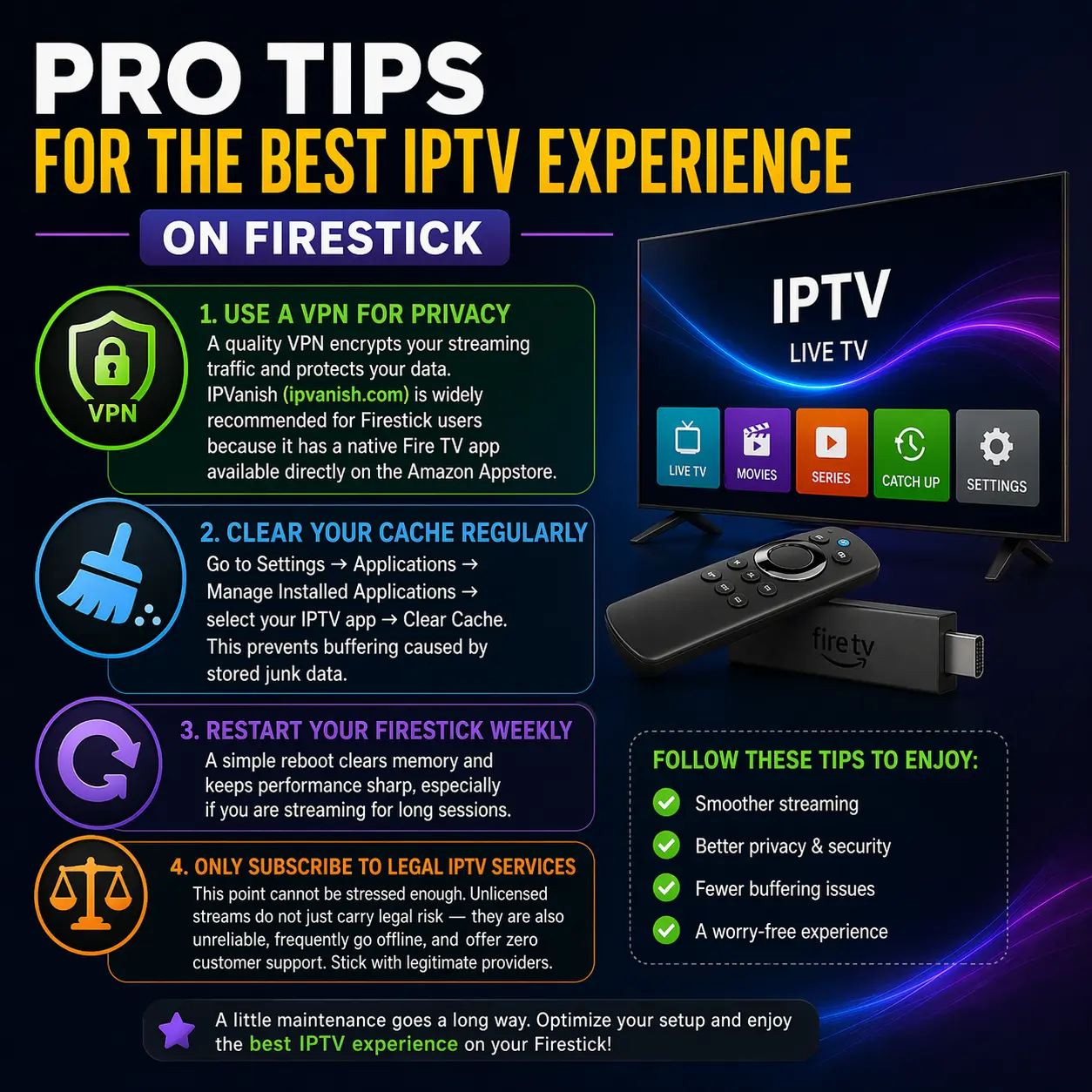
Pro Tips for the Best IPTV Experience on Firestick
Use a VPN for privacy. A quality VPN encrypts your streaming traffic and protects your data. IPVanish (https://www.ipvanish.com) is widely recommended for Firestick users because it has a native Fire TV app available directly on the Amazon Appstore.
Clear your cache regularly. Go to Settings → Applications → Manage Installed Applications → select your IPTV app → Clear Cache. This prevents buffering caused by stored junk data.
Restart your Firestick weekly. A simple reboot clears memory and keeps performance sharp, especially if you are streaming for long sessions.
Only subscribe to legal IPTV services. This point cannot be stressed enough. Unlicensed streams do not just carry legal risk — they are also unreliable, frequently go offline, and offer zero customer support. Stick with legitimate providers.
The Verdict
Setting up IPTV on your Firestick in 2026 is genuinely one of the easiest tech tasks a regular person can accomplish. No jailbreak, no coding, no IT background needed. In under ten minutes, you can go from a blank Firestick to thousands of live channels, on-demand movies, and sports events from around the world — all on a device that costs less than $50.
The only real barrier was the myth that this process was complicated or risky. Now you know the truth. Go enjoy your streams.