
There is nothing more frustrating than having fast internet in 2026 and still dealing with IPTV buffering, freezing, or lag during your favourite live sports, movies, or TV shows. Many people assume that a high-speed broadband plan automatically guarantees smooth streaming, but IPTV works differently from regular on-demand services.
Even if your speed test shows 200 Mbps, 500 Mbps, or even gigabit fibre, buffering can still happen because IPTV depends on stable real-time data delivery rather than just raw speed.
This means the real causes are often things like:
- unstable Wi-Fi
- weak router performance
- network congestion
- IPTV app cache problems
- device overheating
- DNS delays
- poor signal strength
- overloaded streaming devices
The good news is that buffering issues can usually be fixed with a few practical changes.
This guide explains the best IPTV buffering fixes for fast internet users in 2026.
Why IPTV Buffers Even With Fast Internet
The biggest myth is that faster internet always solves streaming problems.
In reality, IPTV needs consistent bandwidth with low interruptions. Even very brief network drops can make live TV streams freeze.
Unlike apps such as Netflix or YouTube, IPTV live channels do not always preload large video buffers. That means they are much more sensitive to:
- packet loss
- Wi-Fi signal drops
- high ping
- jitter
- router overload
- evening congestion
- weak streaming hardware
This is why someone with 50 Mbps stable Ethernet can often stream better than someone using 500 Mbps over weak Wi-Fi.
So the real solution is stability over speed.
1) Use Ethernet Instead of Wi-Fi
This is the number one fix.
Even with fast fibre broadband, Wi-Fi is still the biggest cause of IPTV buffering.
Wi-Fi can be affected by:
- thick walls
- neighbouring routers
- smart home devices
- microwaves
- Bluetooth interference
- long distance from router
A wired Ethernet connection gives your IPTV stream a direct and stable data path.
Best ways to do this:
- connect Smart TV directly to router
- use Ethernet adapter for Firestick
- use Android box with LAN port
- try powerline adapters if router is in another room
For live sports and HD channels, Ethernet almost always performs better than wireless.
2) Move to 5 GHz Wi-Fi
If Ethernet is not possible, the next best fix is improving your Wi-Fi setup.
Use:
- 5 GHz Wi-Fi
- Wi-Fi 6 router if available
- strong signal in TV room
- direct line of sight where possible
Avoid using 2.4 GHz for HD or 4K IPTV because it gets crowded very easily.
Many buffering problems happen simply because the streaming device is connected to the wrong Wi-Fi band.
3) Restart Router and Device Regularly
Routers and streaming devices can slow down after running continuously for many days.
A quick reboot can fix:
- memory overload
- background network congestion
- overheating
- stuck DNS requests
- temporary ISP routing issues
Good practice:
- restart router once a week
- restart Firestick or Android box every few days
- reboot before live sports events
This simple habit solves many unexplained buffering issues.
4) Clear IPTV App Cache
A bloated cache can make the app feel slow even when the internet is fast.
Common symptoms include:
- channels buffering after a few seconds
- freezing on channel change
- app crashing
- delayed EPG loading
- repeated replay loops
Fix:
- open app settings
- clear cache
- clear temporary files
- restart app
- sign back in if needed
This works especially well on:
- Firestick
- Android TV
- Smart TVs
- IPTV Smarters
- TiviMate
- XCIPTV
5) Reduce Video Quality
Sometimes your internet is fast enough, but the stream bitrate spikes during live events.
This is common during:
- football matches
- cricket
- action movies
- stadium scenes
- fireworks
- concerts
A 4K stream may suddenly demand much more bandwidth than usual.
Try changing:
- 4K to 1080p
- 1080p to 720p
A stable Full HD stream usually looks better than a buffering 4K channel.
6) Improve Router Placement
Router placement matters more than most people realise.
Bad placement includes:
- behind the TV
- inside cabinets
- near the floor
- behind thick walls
- close to microwaves
Better placement:
- central location
- higher shelf
- open space
- away from metal objects
- close to main streaming room
Even fast broadband performs poorly if the signal cannot reach the device properly.
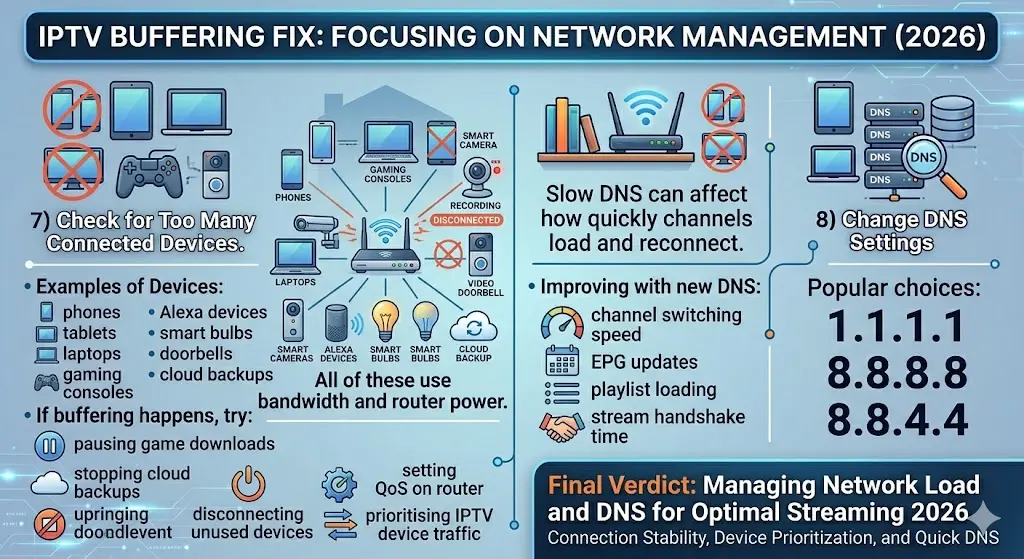
7) Check for Too Many Connected Devices
In 2026, many homes have dozens of connected devices.
Examples:
- phones
- tablets
- laptops
- gaming consoles
- smart cameras
- Alexa devices
- smart bulbs
- doorbells
- cloud backups
All of these can use bandwidth and router processing power.
If buffering happens during busy family hours, try:
- pausing game downloads
- stopping cloud backups
- disconnecting unused devices
- setting QoS on router
- prioritising IPTV device traffic
This often improves stream stability instantly.
8) Change DNS Settings
Slow DNS can affect how quickly channels load and reconnect.
Changing DNS can improve:
- channel switching speed
- EPG updates
- playlist loading
- stream handshake time
Popular choices:
- 1.1.1.1
- 8.8.8.8
- 8.8.4.4
This is a small tweak that can make IPTV feel faster overall.
9) Check Your Streaming Device
Sometimes the issue is not the internet but the device itself.
Older devices may struggle with:
- 4K decoding
- large EPG guides
- H.265 channels
- background app load
- low RAM
- storage almost full
Fixes include:
- remove unused apps
- free up storage
- restart device
- use hardware decoder
- upgrade older Firestick models
- switch to a stronger Android TV box
A slow device can easily create the same symptoms as network buffering.
10) Watch for Peak-Time Congestion
If IPTV works well in the morning but buffers at night, the issue may be network congestion.
Peak hours are usually:
- 7 PM to 11 PM
- live football kick-off times
- major cricket events
- weekends
During these times:
- local Wi-Fi traffic rises
- ISP traffic increases
- IPTV server load grows
- bitrate spikes happen more often
The best solutions are:
- Ethernet
- strong router
- lower stream quality
- early router reboot
- reduced household network usage
Final Verdict: IPTV Buffering Fix With Fast Internet 2026
If IPTV buffers even with fast internet, the real problem is usually connection stability, Wi-Fi quality, router placement, device performance, or network congestion rather than broadband speed itself.
The best fixes are:
- use Ethernet
- switch to 5 GHz
- clear cache
- restart router weekly
- improve router placement
- reduce stream quality
- free device storage
- limit other connected devices
- change DNS
- upgrade older hardware
For most users, the single best solution is Ethernet plus a reliable streaming device, which gives much smoother IPTV playback than fast but unstable Wi-Fi.