
If you use IPTV Smarters to watch live TV or on-demand content, encountering error messages like “Code 403” or “Playlist Failed” can be frustrating. These errors are common, but understanding why they occur—and knowing how to fix them—can save you hours of headaches. In this guide, we’ll explore the causes, solutions, and tips to prevent these errors in the future.
What Does ‘Code 403’ Mean in IPTV Smarters?
In general, a Code 403 error indicates that access to a resource has been denied. On IPTV Smarters, this usually happens when the app cannot authenticate your IPTV playlist or subscription properly.
Common Reasons for Code 403:
- Expired Playlist or Subscription: If your M3U URL or login credentials have expired, the server will reject the request.
- Incorrect Login Details: Wrong username, password, or server URL can trigger this error.
- IP Restrictions: Some IPTV providers restrict access to specific IP addresses, so using a different network may cause a 403 error.
- Server-Side Issues: The IPTV provider’s server might be down or temporarily blocking requests.
Understanding the ‘Playlist Failed’ Error
The “Playlist Failed” error in IPTV Smarters occurs when the app cannot load the channel list from your M3U or Xtream Codes playlist. This can happen for several reasons:
- Invalid or broken playlist URL
- Corrupted M3U file
- Network connectivity issues
- Server downtime from your IPTV provider
Unlike Code 403, this error is usually related to the playlist itself rather than authentication.
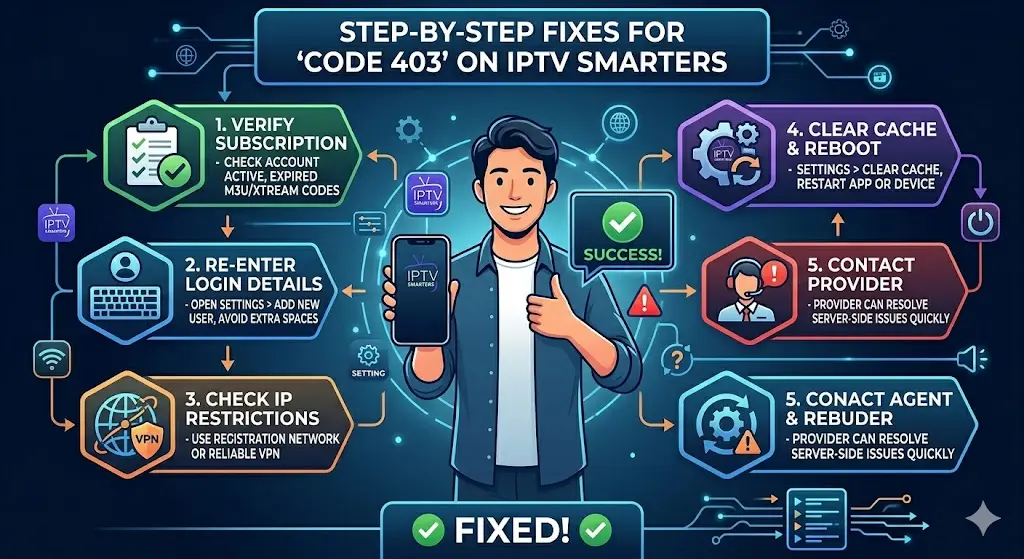
Step-by-Step Fixes for ‘Code 403’ on IPTV Smarters
Here are practical solutions you can try to resolve the Code 403 error:
1. Verify Your Subscription
- Check with your IPTV provider to ensure your account is active.
- Ensure your M3U link or Xtream Codes credentials haven’t expired.
2. Re-Enter Login Details
- Open IPTV Smarters → Settings → Add New User
- Re-enter your username, password, and server URL carefully
- Avoid copying extra spaces or characters
3. Check for IP Restrictions
- If your provider restricts certain IPs, try connecting via the network you originally registered with.
- Alternatively, use a reliable VPN to match the IP allowed by your provider.
4. Clear Cache and Reboot
- Go to IPTV Smarters → Settings → Clear Cache
- Restart the app or device to ensure fresh data is loaded
5. Contact Your IPTV Provider
- If none of the above works, the issue might be on the server side.
- Provide your provider with the error details; they can usually resolve Code 403 quickly
Step-by-Step Fixes for ‘Playlist Failed’ Error
Fixing the Playlist Failed error often requires troubleshooting the source of the playlist:
1. Confirm Playlist URL
- Double-check the M3U or Xtream Codes link
- Ensure the URL is complete and has no missing characters
2. Test Playlist in Another App
- Try opening your playlist in VLC or another IPTV player
- If it works elsewhere, the problem may be with IPTV Smarters specifically
3. Check Network Connection
- A slow or unstable connection can prevent playlists from loading
- Switch to a stronger Wi-Fi network or use wired ethernet if possible
4. Update IPTV Smarters
- Outdated versions may have bugs preventing playlists from loading
- Download the latest version from IPTV Smarters official website
5. Request a New Playlist
- If the M3U file is corrupted, ask your provider for a fresh playlist
- Avoid using playlists from third-party sources, as they often break
Preventive Tips to Avoid These Errors in the Future
- Always Use Official Playlists: Avoid pirated or shared playlists—they often fail or trigger errors.
- Keep IPTV Smarters Updated: Updates fix bugs and improve playlist compatibility.
- Check Account Status Regularly: Make sure your subscription is active and hasn’t expired.
- Stable Internet Connection: A fast and stable network reduces chances of loading failures.
- Use a VPN if Needed: If your provider enforces IP restrictions, using a VPN with the correct location can prevent 403 errors.
When to Contact Support
Even after troubleshooting, some errors might persist due to server issues or account restrictions. Contact your IPTV provider’s support if:
- You consistently see Code 403 after verifying login credentials
- Your playlist fails in multiple apps, indicating a server or file problem
- You need assistance regenerating a valid M3U or Xtream Codes link
Pro tip: Include screenshots and the exact error message when contacting support—this speeds up resolution.
Quick Summary
| Error | Cause | Quick Fix |
|---|---|---|
| Code 403 | Authentication failure, IP restriction, expired subscription | Re-enter credentials, check IP restrictions, contact provider |
| Playlist Failed | Corrupted or invalid playlist, network issues, outdated app | Verify URL, test playlist in another app, update Smarters, request new playlist |
Final Thoughts
Errors like Code 403 and Playlist Failed are frustrating but usually easy to fix. Most issues are either subscription-related, playlist-related, or caused by network or app problems. By following the steps outlined above, you can quickly restore your IPTV Smarters experience and enjoy uninterrupted live TV.
For users looking for reliable IPTV subscriptions that work seamlessly with IPTV Smarters, StarPrimeMedia offers secure playlists, active support, and compatible M3U and Xtream Codes links—reducing the chances of these errors significantly.