
Few things are more frustrating than launching your IPTV app on an Android TV box, selecting a channel, and being met with a silent black screen. No picture, no sound—just nothing. This issue affects many IPTV users and can happen suddenly, even if everything was working fine the day before.
The good news is that a black screen rarely means your device is broken. In most cases, the problem is caused by software settings, connection issues, or compatibility conflicts that can be fixed with a few careful steps.
This guide explains why IPTV black screen issues happen on Android TV boxes and walks you through practical, effective solutions—starting from the simplest fixes to more advanced troubleshooting.
Understanding What a Black Screen Really Means
Before jumping into solutions, it helps to understand what’s happening behind the scenes. A black screen usually means that the IPTV stream is failing to render properly, not that the app itself has completely crashed.
The app may still be running, the channel may still be loading, and the audio stream might even be available—but the video decoder is unable to display the image.
This can occur due to:
- Codec incompatibility
- Hardware acceleration conflicts
- Network interruptions
- App cache corruption
- Incorrect display or output settings
Identifying the root cause helps you apply the right fix rather than guessing.
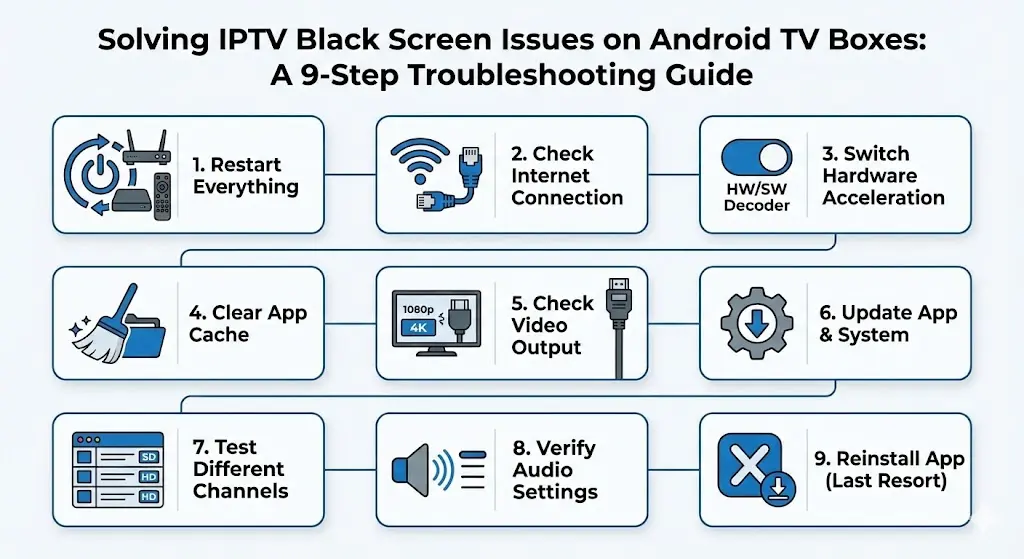
Step 1: Restart Everything (Yes, Really)
It may sound basic, but restarting solves a surprising number of black screen problems.
What to restart:
- Android TV box
- IPTV app
- Internet router (if possible)
Why this helps:
- Clears temporary memory conflicts
- Resets stalled network connections
- Forces apps to reload codecs properly
Always start here before making deeper changes.
Step 2: Check Your Internet Connection Stability
IPTV relies on a continuous video stream. If your connection drops even briefly, the video may fail to load while the app stays open.
What to check:
- Are other apps streaming normally?
- Is your Wi-Fi signal strong?
- Are you using a wired Ethernet connection?
Recommended actions:
- Switch from Wi-Fi to Ethernet if possible
- Move the TV box closer to the router
- Restart the modem/router
- Avoid peak congestion times
A black screen can appear when the stream starts but cannot maintain enough bandwidth to deliver video.
Step 3: Switch Hardware Acceleration Settings
One of the most common causes of IPTV black screen issues on Android TV boxes is hardware decoding conflicts.
Most IPTV apps allow you to toggle between:
- Hardware decoding
- Software decoding
How to fix:
- Open your IPTV app settings
- Find “Player Settings” or “Decoder Settings”
- Switch hardware acceleration OFF
- Restart the app and test again
If software decoding causes lag, try switching hardware decoding back ON later to test stability.
Different Android boxes handle codecs differently, so this setting is critical.
Step 4: Clear App Cache (Not Data)
Corrupted cache files can prevent video from rendering properly.
How to clear cache:
- Go to Android Settings
- Select Apps
- Find your IPTV app
- Tap Storage
- Clear Cache (do NOT clear data unless necessary)
Clearing cache removes temporary files without deleting your login or playlist.
Step 5: Check Video Output and Display Settings
Sometimes the IPTV stream works—but your TV can’t display it correctly.
Things to verify:
- Resolution settings (set to Auto or 1080p first)
- Refresh rate compatibility
- HDMI output mode
Avoid forcing 4K resolution on older TVs or lower-end boxes, as this can cause a black screen.
If your box allows it, switch temporarily to:
- 1080p resolution
- 60Hz refresh rate
Then test the stream again.
Step 6: Update the IPTV App and Android System
Outdated software often causes compatibility problems.
Check for:
- IPTV app updates in the Play Store or app source
- Android system updates
- Player engine updates inside the app
Updates often include:
- Bug fixes
- Codec improvements
- Performance optimisations
Using an outdated version increases the risk of black screen issues.
Step 7: Test a Different Channel or Stream Format
Not all streams are created equally. Some channels may use different codecs or formats.
Try this:
- Test multiple channels
- Check both SD and HD streams
- Switch between live TV and VOD
If only specific channels show a black screen, the issue may be stream-related rather than device-related.
Step 8: Verify Audio Settings
In some cases, incorrect audio output settings can prevent video playback.
Check:
- Audio passthrough settings
- HDMI audio output
- External sound system compatibility
Try disabling passthrough temporarily and testing again.
Step 9: Reinstall the IPTV App (Last Resort)
If nothing else works, a clean reinstall can resolve hidden configuration conflicts.
Steps:
- Uninstall the IPTV app
- Restart the Android TV box
- Reinstall the app
- Re-enter your credentials or playlist
- Test immediately
This resets all internal settings and often resolves persistent black screen issues.
When the Issue Isn’t Your Device
Sometimes the problem is not your Android box at all.
Possible external causes:
- IPTV provider server downtime
- Temporary stream maintenance
- Region-based content restrictions
- Expired or inactive subscription
Testing the same account on another device (phone, tablet, PC) can help confirm this.
Preventing Future Black Screen Problems
To reduce future issues:
- Keep apps updated
- Use wired internet when possible
- Avoid overloading the device with background apps
- Restart the box weekly
- Choose stable stream resolutions
Regular maintenance helps maintain smooth playback.
Final Thoughts
IPTV black screen issues on Android TV boxes can feel intimidating, but they are rarely permanent. Most cases are caused by settings conflicts, network instability, or outdated software—and can be resolved in minutes with the right approach.
By working through the steps in this guide systematically, you can identify the cause, apply the correct fix, and get back to enjoying uninterrupted streaming.
If black screens keep returning, it’s a sign to reassess either your app configuration or service quality—but in most cases, the solution is well within reach.