
Samsung Smart TVs are praised for their sleek design, sharp picture quality, and intuitive interface. But one of the features that truly elevates their functionality is the ability to install apps that expand your TV’s capabilities. IPTV is one of the most sought-after additions, allowing users to stream live channels, movies, series, and international content over the internet, rather than relying on cable or satellite signals.
If you’ve been curious about setting up IPTV on your Samsung Smart TV, this guide will walk you through the process in clear, simple steps. You won’t need advanced tech skills—just follow along, and you’ll have your IPTV service running smoothly in no time.
Understanding IPTV on Samsung Smart TVs
Before jumping into installation, it helps to understand how IPTV functions on Samsung TVs. Samsung Smart TVs operate on Tizen OS, a proprietary system that doesn’t support Android apps directly. This means apps like TiviMate or XCIPTV that work on Android devices are not natively available on Samsung TVs.
Instead, Samsung users rely on IPTV apps built for Tizen, which function as IPTV players. These apps don’t include channels by default. You need an IPTV subscription that provides M3U playlists, Xtream Codes login, or streaming URLs. The IPTV app then organizes and displays your provider’s content in a user-friendly interface.
Several IPTV apps are available for Samsung Smart TVs. While the setup may slightly differ between them, the general steps remain the same.
What You’ll Need Before Starting
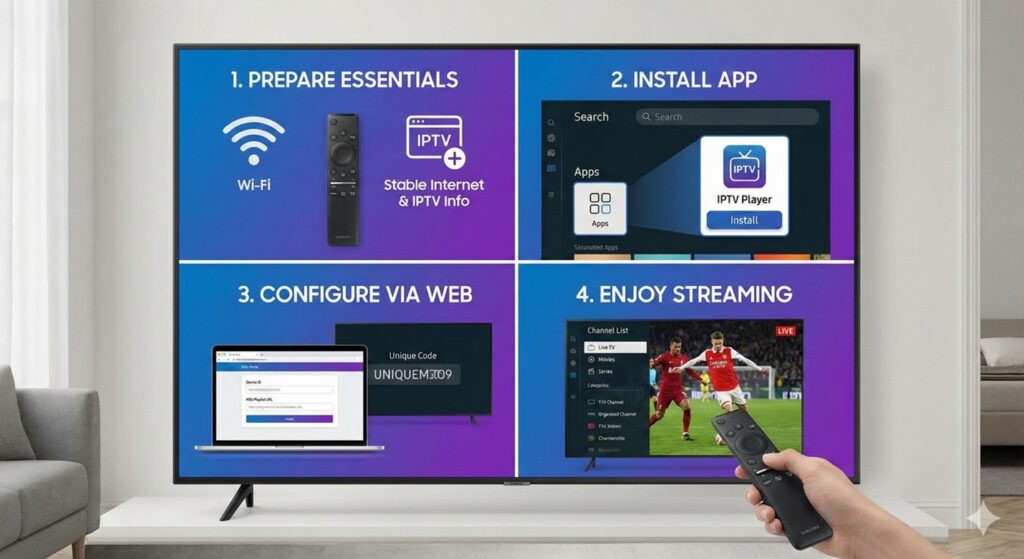
To install IPTV on your Samsung Smart TV, ensure you have:
- A Samsung Smart TV with access to the Samsung App Store.
- A stable internet connection (Wi-Fi or wired).
- An active IPTV subscription.
- Your login details, M3U link, or Xtream Codes credentials.
- Optionally, a VPN on your router or device for privacy and to prevent bandwidth throttling.
With these essentials ready, you’re prepared to begin the installation.
Step-by-Step Guide to Installing IPTV
Step 1: Connect Your TV to the Internet
Before installing the app, confirm your TV is properly connected to the internet. Go to:
Settings > General > Network > Network Status
For the smoothest streaming experience, a wired Ethernet connection is recommended, especially if your Wi-Fi signal is weak.
Step 2: Open the Samsung App Store
Press the Home button on your remote to open the dashboard. Navigate to the Apps section, which houses the Samsung App Store. Use the search function to find IPTV apps. Depending on your model and region, you may see options such as:
- Smart IPTV (SIPTV)
- SET IPTV
- DuplexPlay
- NET IPTV
- SS IPTV
- Flix IPTV
While each app has slightly different features, all function as platforms for loading your IPTV provider’s content.
Step 3: Select and Install Your IPTV Player
Choose your preferred app and click Install. Once the process completes, the app will be accessible from your home screen or Apps section.
Consider these points when choosing an IPTV app:
- Smart IPTV and SET IPTV are beginner-friendly and easy to use.
- DuplexPlay and NET IPTV offer polished interfaces and stable performance.
- SS IPTV is free and suitable for casual users.
- Flix IPTV provides a premium experience with advanced customization options.
Some apps may require a small one-time activation fee to fully function.
Step 4: Open the App and Locate Your Device ID
Launch the IPTV app. Most Samsung IPTV applications display either:
- A MAC address, or
- A Device ID
You will need this code to register your device on the IPTV app’s web portal. Take a note or a photo for reference.
Step 5: Upload Your Playlist via the Web Portal
From a computer or smartphone, visit the IPTV app’s official website. Each app has a dedicated page for device activation. Typical steps include:
- Entering your MAC address or Device ID
- Uploading your M3U playlist link
- Adding Xtream Codes login credentials (if supported)
- Uploading EPG links for TV guides
- Saving or applying your settings
Once complete, the playlist is ready to sync with your TV app.
Step 6: Restart and Load Your IPTV App
Return to your Samsung TV and relaunch the IPTV app. Some apps refresh automatically, while others require you to press Reload or Restart. Once loaded, your channels should appear, neatly organized into categories like:
- Entertainment
- Sports
- Movies
- Kids
- News
- International
- On-Demand
Now you can navigate, watch, and personalize your viewing experience.
Troubleshooting Common IPTV Issues
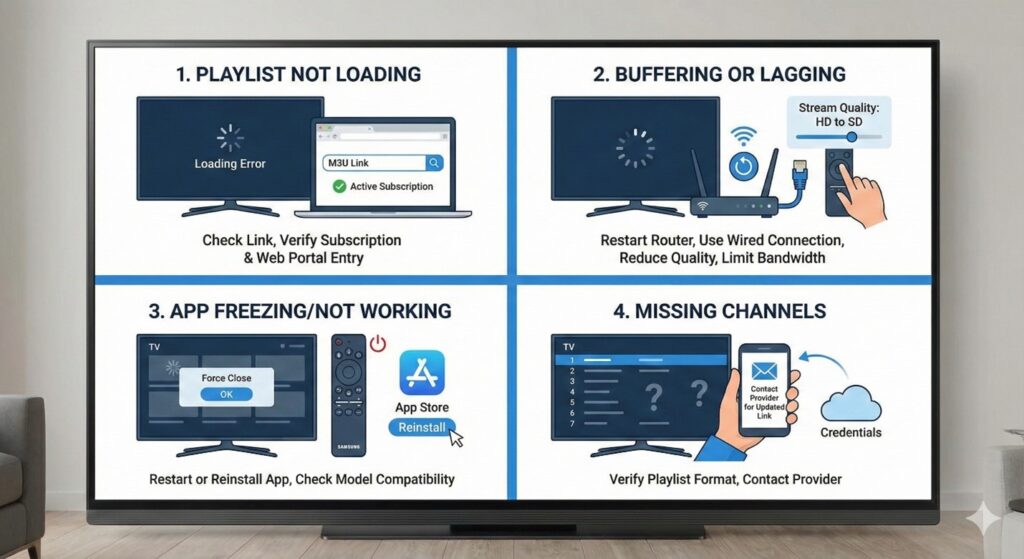
Even with proper setup, minor issues can occur. Here’s how to fix them:
- Playlist Not Loading
- Confirm your M3U link is correct.
- Ensure your subscription is active.
- Verify that you pasted the URL correctly in the web portal.
- Buffering or Lagging Channels
- Restart your router.
- Switch to a wired connection if possible.
- Reduce the stream quality in the app.
- Limit bandwidth usage on other devices.
- App Freezing or Not Working
- Restart the app or reinstall it.
- Check if the app supports your Samsung TV model.
- Missing Channels
- Incorrect playlist format can cause missing channels.
- Contact your IPTV provider for the updated link or credentials.
Why Samsung Smart TV Is Ideal for IPTV
Samsung Smart TVs offer several advantages for IPTV users:
- No extra hardware required
- Stable and secure Tizen OS
- Superior display quality for all content
- Easy installation and updates for apps
- Smooth and responsive user interfaces
When set up correctly, your Samsung TV becomes a complete IPTV streaming hub.
Final Thoughts
Installing IPTV on a Samsung Smart TV is straightforward when you follow the correct steps. Whether you’re using Smart IPTV, DuplexPlay, SET IPTV, or another compatible app, the process involves installing the app, linking your device through the web portal, and uploading your IPTV playlist.
With a reliable IPTV provider and proper setup, your Samsung Smart TV can unlock thousands of channels, movies, series, and on-demand content from across the globe—transforming your TV into a complete entertainment hub.